Using the Stage editor
The Stage editor is where you build the spaces your game or story takes place in. You can paint terrain and make buildings with Props and Set Pieces, place Actors, position the Hero, connect Stages with Exits, and link the edges of a Stage to another one to create a connected world.
An Overview
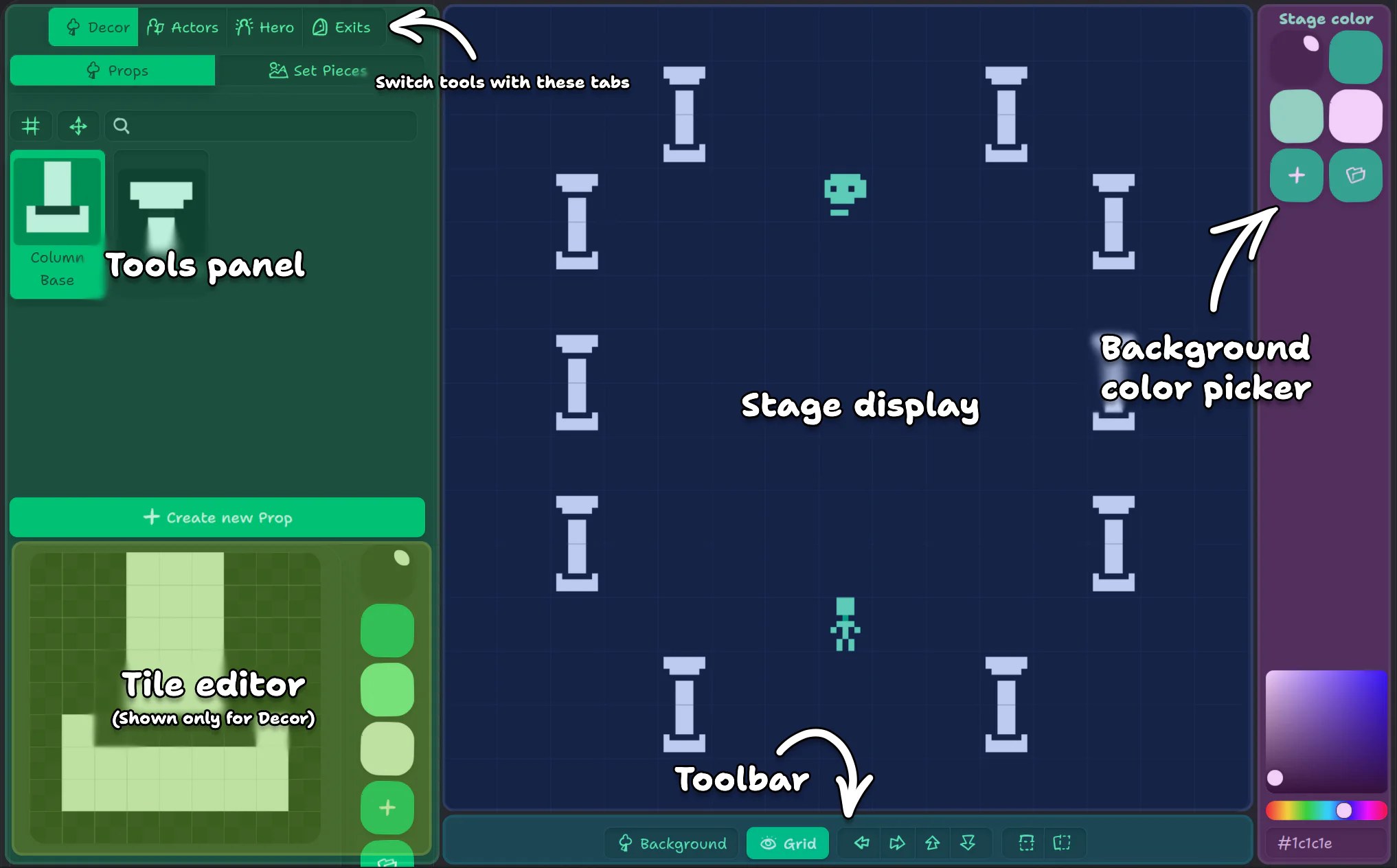
The Stage editor has:
- a live Stage display in the middle (blue),
- a tool panel (green),
- a background color selector (pink),
- and a toolbar at the bottom with some utilities and toggles.
Most tool panes have a browser that lists all your assets of the selected type. Additionally, when a Prop or a Set Piece is selected on the tool panel — and when Whimtale is not in a portrait orientation —, a simplified tile editor (yellow) will be shown.
Placing Stuff
Actors, Props, and Set Pieces are all placed in the same way:
- At the top of that panel, switch between Decor and Actors.
- Pick an asset from the browser by pressing it.
- Paint on the Stage by clicking and dragging.
- With a Prop or Actor selected, clicking a cell that already has that asset will erase it. Right-click also erases.
- Set Piece works similarly, but placing a Set Piece will remove any Props under it.
To create a new Prop or Set Piece on the fly, use the New Prop / New Set Piece button below the browser. You can draw on the new asset and place it on the edited Stage right away and preview how it looks.
Both decorations and Actors can be placed as many times as you want on a Stage. Need a character that "reappears" in different cities? Place them in several Stages! Need several coin pickups on one Stage? Use the same Actor for each of them!
Background and Foreground layers
Every Stage has two paint layers for Props and Set Pieces: Background and Foreground.
- Background decorations sit behind everything else. They can be solid and will block movement if marked as impassable (and Set Pieces can block by the cells marked solid in their tile mask).
- Foreground sits on top of background, Actors, and the Hero, and they never block movement.
A plane is a Hero, and it gets covered by clouds on the foreground layer.
To switch between them while painting with Props/Set Pieces, use the 🌳 Background / ☁️ Foreground toggle in the bottom toolbar, or press Space on a keyboard.
Shifting and mirroring the whole Stage
Use the buttons in the bottom toolbar to shift the entire Stage up, down, left, or right — the Props and Actors that would go out of bounds will wrap around the edges. If shifting would push any Set Piece block off the edge of the Stage, the editor will ask you to confirm before doing it.

You can also mirror the Stage horizontally and vertically.
Hero Placement
You can put your Hero character by switching to the Hero tab in the tool panel, and pressing the Stage in the needed location. Only one Hero exists per project, and by placing them, you define where your game or story begins.
Connecting Stages Together
Whimtale has three ways of connecting the Stages so a Hero can move between them: through Exits, through edge transitions, and through Scenarios — we will focus on the first two here.
Exits are manual links between Stages. When the Hero steps on an exit tile, the game moves them to the linked Stage, to the linked position. Edge transitions stitch whole Stages together on their edges.
Adding exits
To place a manual Exit:
- Switch to the Exits tab on the left.
- Click a cell on the Stage to add an exit there.
- A modal window will appear. Choose which Stage the exit leads to first at the bottom, then at which cell the Hero should appear.
After applying changes, the exit will appear in the list on the left. Exits will show up as numbered pills on the Stage so you can tell them apart in the list. Hovering over a cell with an exit highlights it in the list, and hovering over an entry highlights it on the Stage.
If you click an existing Exit on a Stage, it will be removed.
Also note that Exits are shown only when the Exits tab in the tools pane is open — don't be afraid when they suddenly "disappear" when you switch to Actors or Decor.
When another Stage has an Exit pointing to this Stage, the editor shows a label on the destination cell showing which Stage sends the Hero there (an "enter point"). These are just a guide for placing your exits — they're not interactive.
You will also usually place pairs of Exits that will move a Hero to a Stage and back — enter points will help seeing whether the second part of such a transition is done.
An exit can move the Hero to the very same Stage — with that, for example, you can place teleports for a puzzle Stage, or draw a tunnel where a Hero walks into one cave and comes from another.
Edge transitions (wraps)
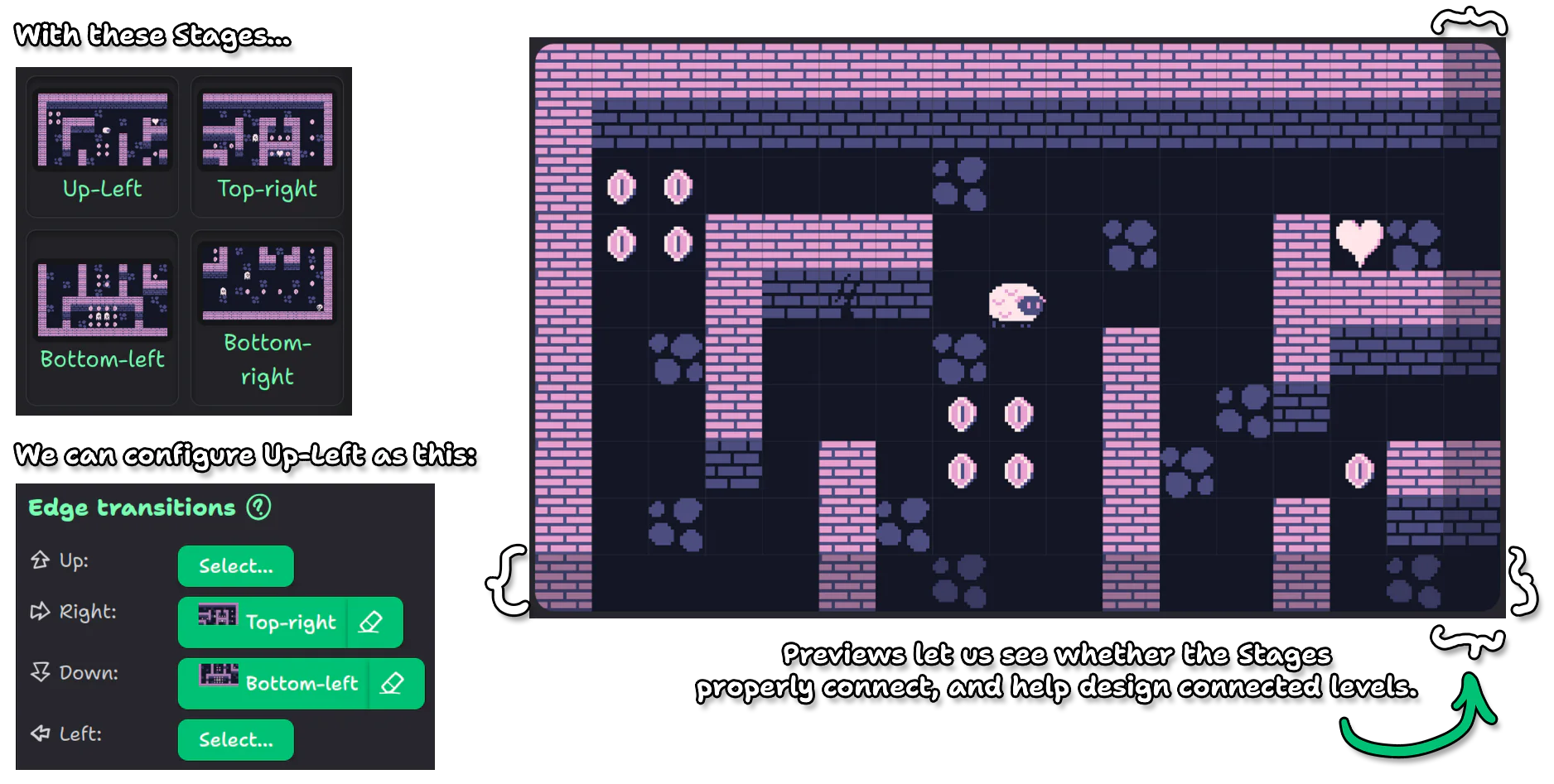
At the bottom of the Exits tab is Edge transitions. These let you automatically move the Hero to another Stage when they walk off the edge, with no Exits required.
For each direction — up, right, down, left — you can pick a target Stage. If the target Stage doesn't point back to this one, a Match button appears so you can link them in both directions in one click. Linked edges will also show a preview of the next Stage around your current one.
Exits and edge transitions only affect the Hero movement. If you need to move Actors around, you will need to use Scenarios.